
Build your first MCP app through ChatGPT: a step-by-step walkthrough
 Sami Can Tandogdu
You tell ChatGPT to add "prepare the demo" to your tasks.
You mark that as complete. A task list has appeared in the conversation. You click the checkbox for the first task and it gets marked as complete too.
That is the app we’re going to build.
This walkthrough will also clarify what you’re building in MCP Apps. We’ll use ChatGPT to build this app, Sites to host it, and a plugin to connect to this app from within ChatGPT.
MCP, Server, Apps Interface and Plugin - Links to developer material
Throughout this document references to MCP, the MCP Server, the MCP Apps Interface and to MCP Plugins will link to developer documentation hosted at developers.openai.com.
1. Understand what you’re building
A few terms will keep coming up:
| Term | What it means in our task app |
|---|---|
| MCP | Model Context Protocol: the standard ChatGPT uses to discover and call your app’s tools. |
| Tool | A specific operation, such as adding a task or marking it complete. |
| MCP server | The software that receives those requests, checks them, and performs the work. |
| MCP Apps interface | The interactive task list displayed inside ChatGPT. |
| Plugin | The package people install to access your app’s capabilities in ChatGPT. |
When you issue a request to your model, the model interprets your request and decides on the correct tool(s) to apply in order to process your request. Your MCP Server will then apply these tools and return the results to you. MCP Apps merely adds an interactive interface on top of this exchange. See MCP concepts and MCP Apps UI.
The pieces of an MCP app
Skills are the core unit of functionality in plugins. A skill is a reusable snippet of executable functionality that typically forms part of a larger workflow. A single skill might tell ChatGPT to plan out a user’s day, and then your task app could contain the tools to create and update tasks to plan out the day. Plugin packaging
2. Give ChatGPT a focused brief
Test a focused brief in a new Work mode ChatGPT conversation by typing @ followed by Sites and then paste and send the above to test building an MCP app.
Build a small MCP app called My Tasks that I can use inside ChatGPT.
That I am able to Add a task, List tasks and Complete a task (making it incomplete) within the conversation or within the task list that is created as part of the MCP Apps interface.
Use the MCP Apps standard for the interface. Host the server with Sites.
Save the tasks in a database so they are not thrown away with every new conversation. Each task has to have an ID, a title, be completed or not and a creation time. The tasks have to be associated with the authenticated user.
Initially limit the scope of the first version to the functionalities you described and then expand further in subsequent versions. Work through the implementation and test the different features of the functionalities you described and then describe what you built and how you deployed it.
This way you specify only behavior that can be tested, not the open-ended specification of building a “productivity app” (e.g. “add tasks”, “complete tasks” etc. make for a good short test case).
I am preparing this test specification, and I would like you to avoid reference to features not included in the first version of the productivity app that you will create and test, such as deadlines, reminders, groups and integration with calendars.
3. Make the tools explicit
Once ChatGPT has created the first version, ask:
Show me the different MCP tools that I implemented to support the application. Provide information on the arguments that each tool accepts, the output that each tool returns, and whether each tool modifies any saved data.
For our APP, the following three functions should work:
| Tool | Input | Result |
|---|---|---|
list_tasks | Optional completion filter | The current user’s tasks |
add_task | A task title | The newly saved task |
set_task_completed | Task ID and completion status | The updated task |
For the purpose of this test, each tool is defined by a name, a description and an input schema (the arguments a tool accepts). ChatGPT uses a tool’s input schema to decide when and how to use it. How MCP tools work
For example, “Add ‘prepare the demo’ to my tasks” could become:
{
"title": "Prepare the demo"
}
When the user hits submit on this new task, the add_task tool is called with the JSON of the input above. The server validates the input, adds a new task to the list of stored tasks, and then returns the newly created task to the MCP Tools Server. This newly saved task includes a task id, title, and a number of other fields.
Ask ChatGPT to specify that it should return an error message to the MCP Interface that submitted the request if the title is empty or if the task ID specified does not exist. This is a small tweak but makes the app more predictable.
4. Connect the interface to the tools
Now inspect the task list.
Render an unchecked checkbox next to each task (the text already describes this). Now make sure that every change to data in the interface uses the corresponding MCP tool and renders the (possibly updated) server result after the action has succeeded. Failed saves should render a visible error message.
Use this follow-up:
Check that the task list and task add code is using the MCP tools for all data modifications (ie: update server data after action has completed successfully). Paint error plainly if save fails.
Make sure the tools also return enough information for ChatGPT to explain the result in conversation.
An MCP Apps interface runs within an isolated frame in the ChatGPT interface, using a specific bridge to call tools and update with results. The server running for the MCP Apps interface associates the specific interface with the appropriate tool. How the interface connects.
Your same app can be used by people describing actions or clicking on controls.
From a request to a saved task
- Describe it or click itAsk ChatGPT to add a task, or check a task off in the interface.
- Call the matching tool
add_task({title})orset_task_completed({id, completed}) - Check the request and saveThe server checks the input and the user’s access, then writes the change to the database.
- Return the saved resultThe tool returns the updated record. ChatGPT can describe it, and the interface can show it.
5. Check where the data lives
Ask:
Where are tasks stored? How can I verify that each request (from task list, add task form, etc) is associated with the currently authenticated user. Is it possible to re-open this app in a new conversation and have all saved tasks still available?
Verify that tasks created by one user cannot be read or modified by another user (including by specifying a different task ID).
This introduces two useful concepts:
Storing state - persistence: you need a database to store the data between conversations, i.e. conversation history and the open interface do not make good databases.
Authentication is the process of ChatGPT establishing the identity of users of your Apps. Authorization decides which tasks a authenticated user can read or edit. In your MCP server you must check for access when reading or writing a task. MCP authentication
Temporary information that you enter into an interface (e.g. an expanded panel) can remain in the interface. However, saved tasks for your MCP App belong on your server.
6. Deploy it and connect the plugin
After reviewing the preview, send:
Deploy 'My Tasks' to Sites and set access to just you. You should be able to verify that the MCP endpoint for the new Site is working as expected. Then, share the installation control for the new associated personal plugin with the user.
Deployment: Deployment of the MCP server to a location that can be reached by ChatGPT. For the Sites platform, this means hosting of the MCP server as part of the hosting of the Site, and the MCP Workflow is associated with the private plugin for that Site. This was announced as part of the announcement of support for plugin extensions to MCP, in addition to support for Sites. MCP announcement by mxstbr
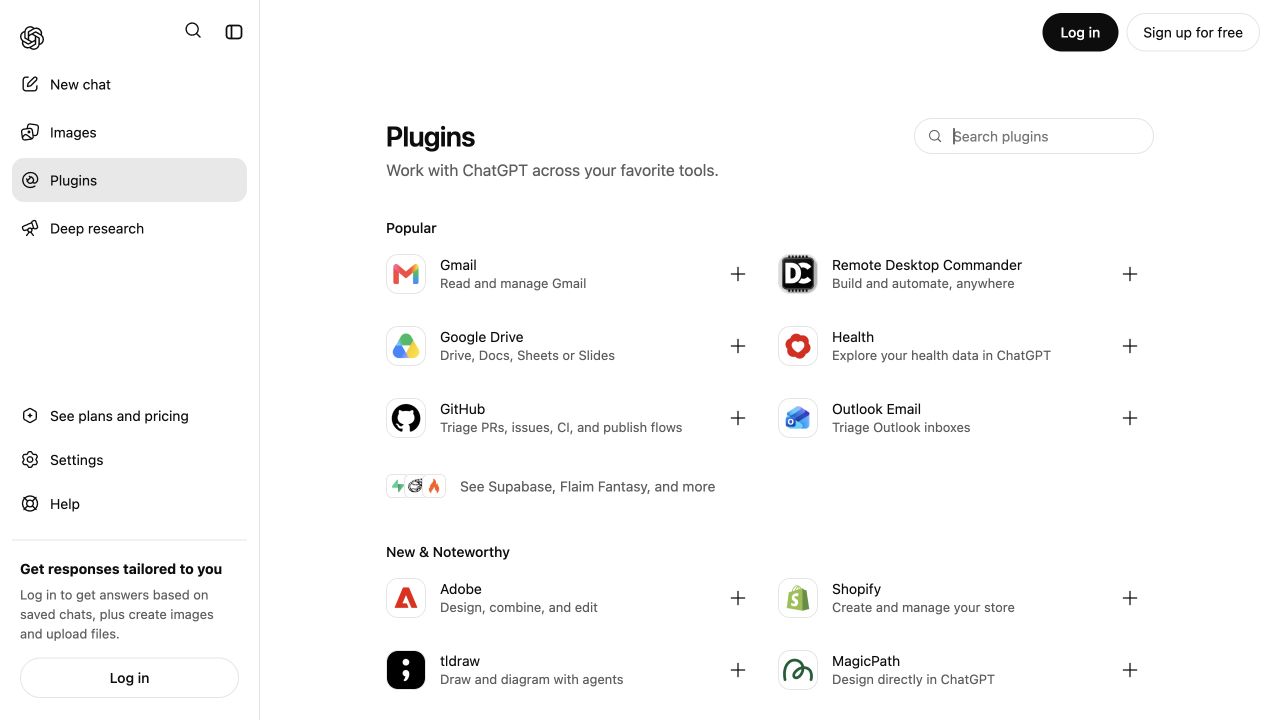
You can use the installation control provided by ChatGPT to connect to your server. Any connection prompts that ChatGPT provides during the installation process should also be completed. Note that you can also connect to your server by going to the Plugins page (in the left sidebar), clicking on Personal, and then clicking on Created by you to open up the App’s plugin. From there you can click on Install or Connect as appropriate.
If you’re later to move MCP to another host, you can follow the manual connection process as described in the App Quickstart above (Chatgpt UI App Builds – ChatGPT — chatgpt.ui.app.builds#connect-your-mcp-server-in-chatgpt), enabling Developer mode first under the plugin’s Settings → Security and login.
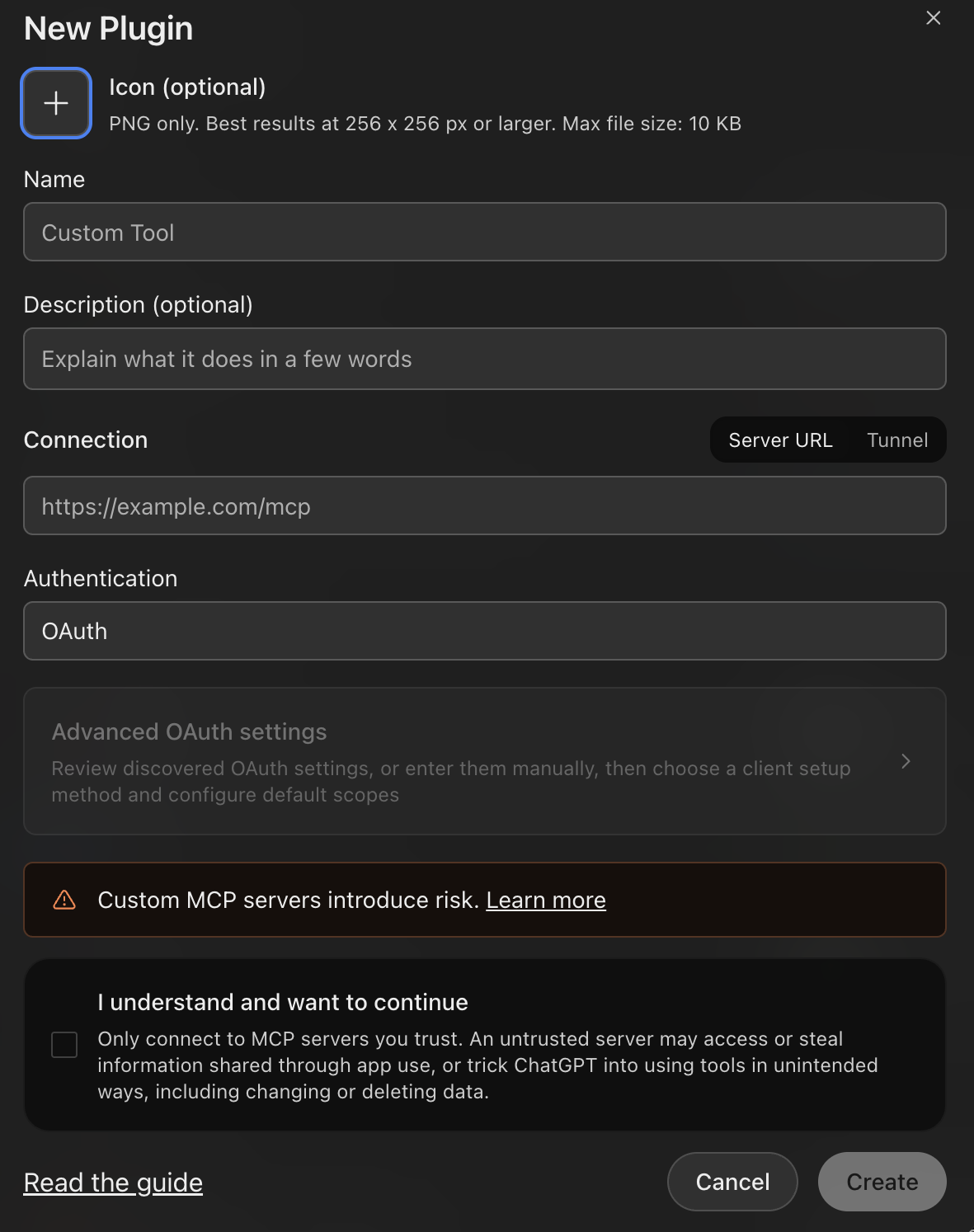
7. Test it from a fresh conversation
Begin a new Work conversation. Within the conversation, type @ and pick the newly installed plugin from the dropdown.
Then run these checks:
| Try this | What should happen |
|---|---|
| “Show my tasks.” | The app retrieves your saved list and displays it. |
| “Add ‘prepare the demo’ to my tasks.” | One task is saved and appears in the list. |
| Click its completion checkbox. | The saved task becomes complete. |
| “Which tasks have I completed?” | ChatGPT correctly retrieve the updated completed tasks (including the task you just completed). |
| Open another conversation and request your tasks. | The same saved records are available. |
| Submit an empty title through the interface. | A clear validation message appears and no task is created. |
Also inspect the tool output. A test case must have a tool output and also change the saved data for that test case.
If something fails, describe the exact sequence:
I added a new task via chat, marked another task as completed within the UI and then requested within chat the list of completed tasks. However, the task I marked as completed within the UI was listed as incomplete. Please provide steps to resolve this.
That gives ChatGPT a reproducible problem.
8. Improve one interaction at a time
Once the basic functionality works, try to improve it in small steps, for example:
When you switch from Open to Completed, all your saved task records are still there – just presented in a different way.
Or improve how ChatGPT understands the app:
Review tool descriptions so that "What needs to happen next?" and "I have just finished preparing the demo for the meeting." map to the right functionality. Also, take care to request clarification when there are multiple appropriate tasks.
You test the updated tool, metadata or functionality, within the app after you refreshed the connection to the plugin within a new chat conversation. Iteration guidance
Just because you’ve deployed an app, it does not have to be public. Work plugin deployment, testing of the plugin with test cases and a demo of its behavior are all separate from personal testing and are dealt with as a separate submission and review process which can be started from the public submission guide here: https://developers.openai.com/plugins/deploy/submission.
Build it with Recurse
You can also use Recurse to build and deploy the agent behind your MCP app. Your coding agent writes the project, Recurse runs the agent, and MCP makes the deployed agent available as a tool.
Give your coding agent the Recurse skill and ask it to adapt the My Tasks brief:
Use Recurse to build the agent behind My Tasks. Support adding, listing, and completing tasks. Store tasks in a persistent database and check the authenticated user’s access on every operation. Return structured results that a task-list interface can display.
Run the test cases from this walkthrough and show me the results. Then prepare the MCP deployment and explain how to connect the interactive interface.
Follow the installation guide to set up the CLI and sign in. Once you’ve reviewed the tested project, your coding agent deploys it with:
recurse deploy ./my-tasks --as mcpReplace ./my-tasks with your project’s directory. Recurse returns a deployment ID. For a client that supports local MCP servers, configure it to launch the Recurse bridge:
recurse mcp serve <deployment-id>Reload the connection and test a real request. The deployment guide covers the client configuration and verification steps.
The interactive task list is a separate part of the app: ask your coding agent to build it using the MCP Apps UI standard and connect it to the deployed agent. Deploying an MCP tool alone does not create the interface inside ChatGPT.